
Print your Etsy orders in Vixie
Connect your Etsy shop and your Etsy orders print from the same Print Queue as everything else.
-
Linked listings: Match each Etsy listing to a Vixie product, or create a draft listing from Vixie.
-
Customers design after checkout: Each order gets a design link you send in Etsy Messages.
-
One Print Queue: Etsy orders print on the same sheets as your store and event orders.
-
Price sync: Send your Vixie prices and sizes to Etsy.
We're working on getting Etsy's approval to email the design link to your customers automatically, so you won't have to send it yourself.
Included on every plan.
The term 'Etsy' is a trademark of Etsy, Inc. This application uses the Etsy API but is not endorsed or certified by Etsy, Inc.
October, part 2: shipping zones, local pickup, and your own domain
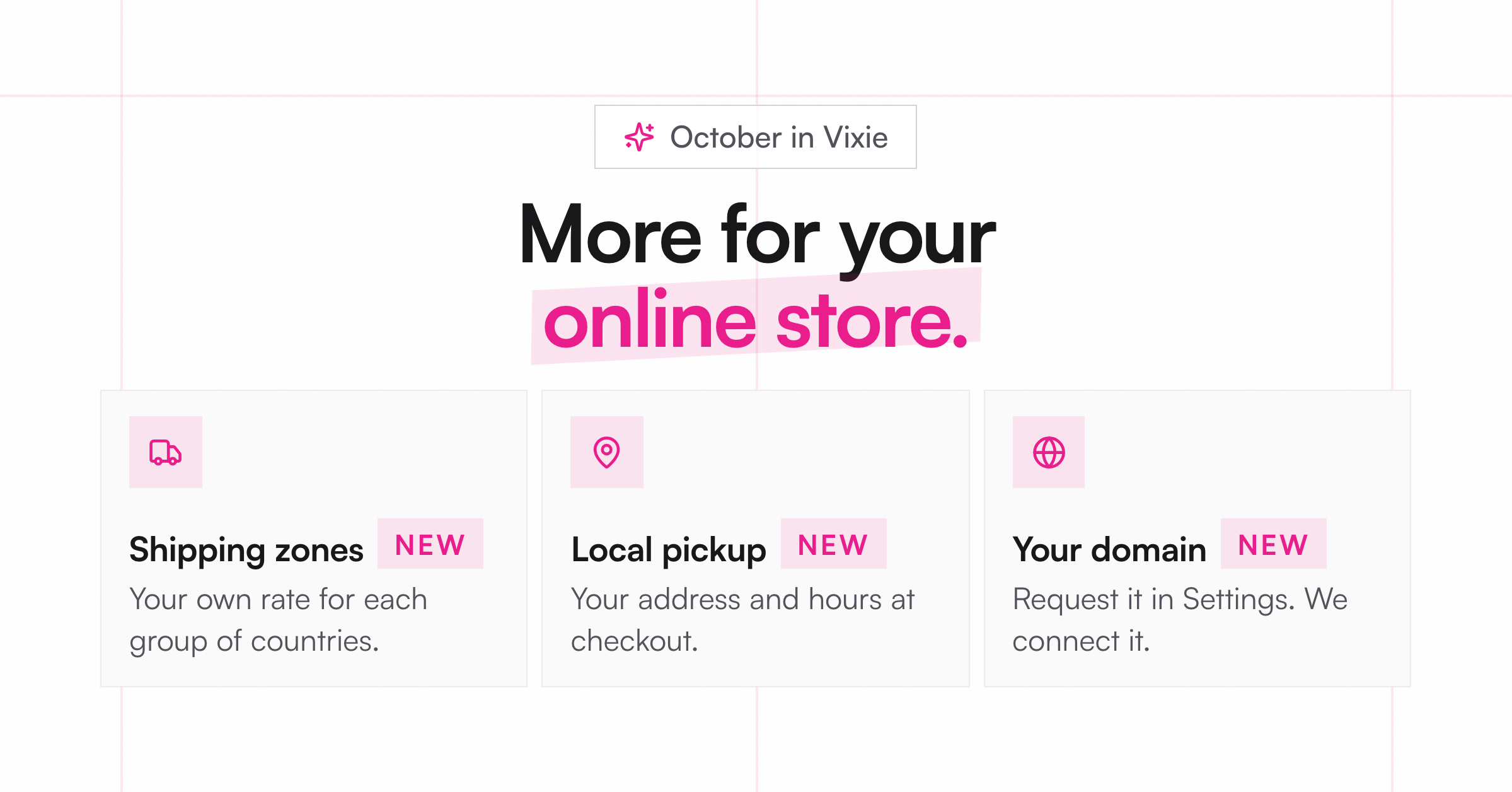
The rest of October went into your online store, with a few booth upgrades too.
Shipping and pickup
-
Shipping zones: Set your own rates by country, with free shipping over an amount you choose.
-
Ship only where you want: Turn off shipping to countries outside your zones.
-
Local pickup: Add a pickup address and hours. Customers see it at checkout and get an email when their order is ready.
Your own domain
Run your store and live event pages on a domain you own. Request it in Settings, then Domain, and we'll connect it for you. Included with the Store and Growth plans.
Your store
-
Overview: The Store page now opens with a preview, your sales, and what needs your attention.
-
One checklist: A single card shows what's left before you publish.
At the booth
-
Walk-up order up front: It's now the main button on a live event.
-
Easier on your phone: Bigger buttons, and Save and bulk actions stay in view.
The Store Widget
-
Matches your store: Uses your store's colour, and goes dark only when the customer's phone does.
-
Bahasa Indonesia translation
Smaller things
-
A new 5" × 7" size.
-
ENTERS measurements in Print Studio.
-
Safari downloads the PDF when it blocks printing.
-
Damaged iPhone photos are refused at upload.
Show your sizes in centimetres or millimetres
Your sizes can now read the way your customers measure. Pick inches, centimetres, or millimetres, and Vixie uses it everywhere.
-
Pick your unit: Go to Settings, then Size units. Choose Imperial (inches), Metric (mm), or Metric (cm). Before you save, a preview shows what your customers will see, like 2" × 2" becoming 5 × 5 cm.
-
Your store follows: Vixie renames the Size values on your linked Shopify or Wix products in the background. On Shopify, carts and orders aren't affected. On Wix, orders aren't affected, but a customer who already has one of those products in their cart will need to add it again.
-
Everywhere in Vixie: Your products, orders, Print Queue, event reports, and the sizes your customers pick from all use your unit.
-
Print Studio too: Measurements in Print Studio use your unit. Both metric options edit in millimetres, since gaps and bleeds are too small to type in centimetres.
-
Round sizes say Round: New round sizes on your store read 3" Round instead of 3" Circle.
Vixie is live on the Wix App Market
Vixie is now on the Wix App Market. Your customers personalize photo magnets right on your Wix product page, and the orders land in Vixie ready to print.
-
On your product page: The Magnet Customizer opens on the product. The customer uploads a photo, crops it, adds a filter or text, and adds it to the cart. It works on the classic Wix Stores product page and the newer one in Wix Studio.
-
Every shape you press: Photo magnets, puzzle magnets, and graphic magnets with pre-made designs.
-
Checkout stays in Wix: Your Wix payments, taxes, coupons, and shipping work the way they do now. Checkout stops any Vixie item that's missing its photo.
-
Products and orders sync: Create magnet products in Vixie and push them to Wix, or import the ones you already sell. Paid orders show up in your Print Queue next to your event orders.
-
Billed through Wix: Pick Launch or Growth when you install. Both start with a 7-day free trial.
Your site connects as soon as you install, and a checklist in your Vixie dashboard walks you through the rest.
Find Vixie on the Wix App Market: https://www.wix.com/app-market/c7df3c8c-4ac3-45d0-85aa-767a3d178907
October: a new event board, a pickup screen, and a better event report
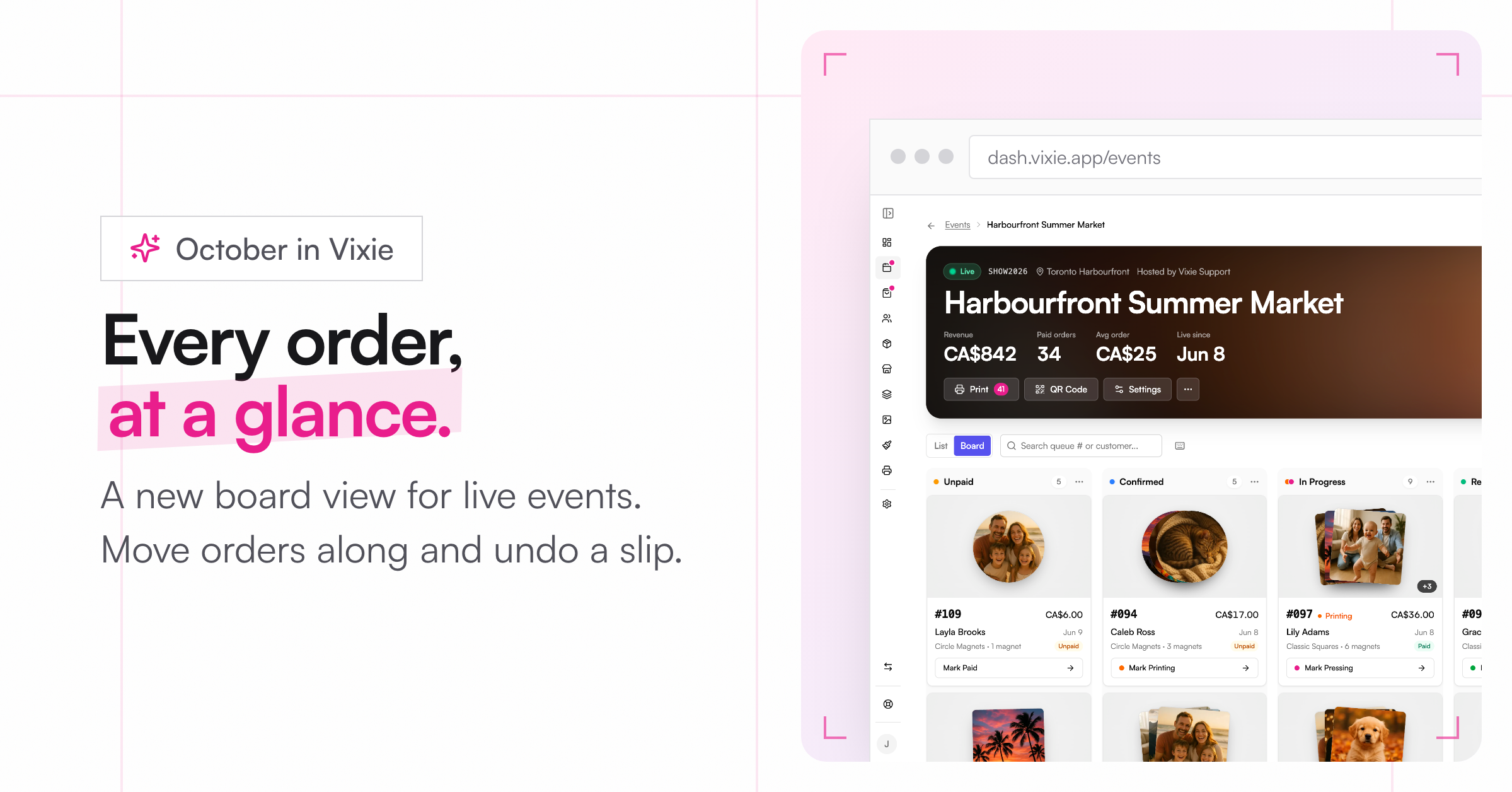
October so far is all about the booth.
A new event page
-
Board view: See every order in columns by status. Sort a column oldest or newest first, select all, and move orders along. Made a mistake? Hit Undo.
-
Keyboard shortcuts: Press
?to see them. -
Your screen stays awake while an event is live, and the page catches up after a dropped connection.
-
Print fills the page: When you print an order, Vixie can fill the rest of the page with other waiting orders.
Customer pickup screen
Open Pickup screen from a live event's menu and put it on a tablet or second screen. Ready orders show big with the customer's first name. A chime plays when an order is ready.
A better event report
The report now shows what you made, your pace, how this event compares to your others, your busiest hour, your best seller, and the wait time. Refunded and cancelled orders no longer count, and hours use your local time. Download the orders as a CSV or a PDF. Multi-day events are shown day by day.
Print quality and privacy
-
Low-resolution warning: Customers see a hint when their photo would print blurry. Want to stop those photos completely? Turn it on in Settings, under Media & Privacy.
-
Automatic photo cleanup: Choose how long to keep customer photos in Settings, under Media & Privacy. Order records stay. Only the photos go.
Smaller things
-
Add a Message for customers to an event. It shows on the first screen of your live event page.
-
Upcoming events warn you early if your plan won't let them go live.
-
Help & feedback now lives in the sidebar, with video tutorials.
-
Order emails list subtotal, discount, tax, and shipping on separate lines.
-
Shopify orders arrive already paid, so there's nothing to mark.
-
Photo uploads keep working when a customer's internet provider blocks our photo storage.
September: customers can add their own words
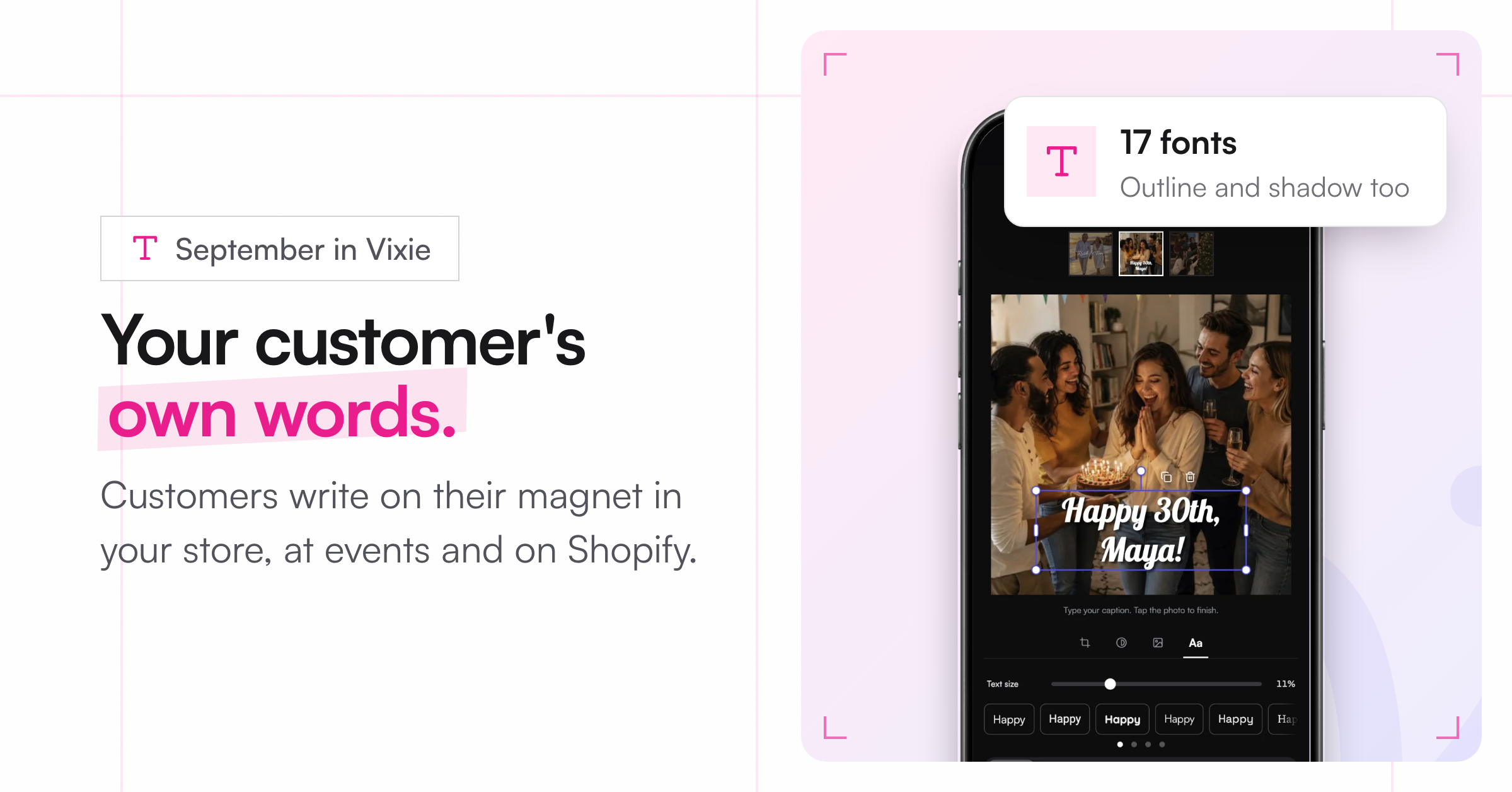
The big one this month: text.
Custom text, everywhere
Your customer can now write on their magnet in your Vixie store, at live events, and in your Shopify store. They tap the photo, type, and tap Done. The text shows in the cart and prints on the finished magnet.
-
17 fonts, including new serifs, light faces, and formal scripts like Allura and Great Vibes.
-
Outline and shadow can be used together, and there's a Transparency setting.
Photo editing
-
Brightness, contrast, and saturation: Three new sliders in the Filter tab. What the customer sees is what prints.
-
The cart shows the finished design: crop, filter, frame, and text, not the raw upload.
-
Replace a photo without starting over, and tap any photo at review to edit or remove it.
At the booth
-
Mark paid in bulk: At cash events, select unpaid orders and mark them all paid at once.
-
Order age in the queue: The time shows how long since the customer ordered, and stops at pickup.
Printing
-
Problem magnets are flagged: If a magnet fails to process, the queue and order page now say so. Reprocess Magnets redoes only the broken ones.
-
Sharper prints: We retuned how photos are prepared for print.
-
Pressing Generate Print twice no longer makes two batches, and empty spots on a page no longer print cut lines.
Also
-
Annual plans are now on Shopify billing too, with 2 months free.
-
Error pages now look like Vixie, and an event's error page lets the customer re-enter the event code.
August: discount codes, background removal, and your store in 12 more languages
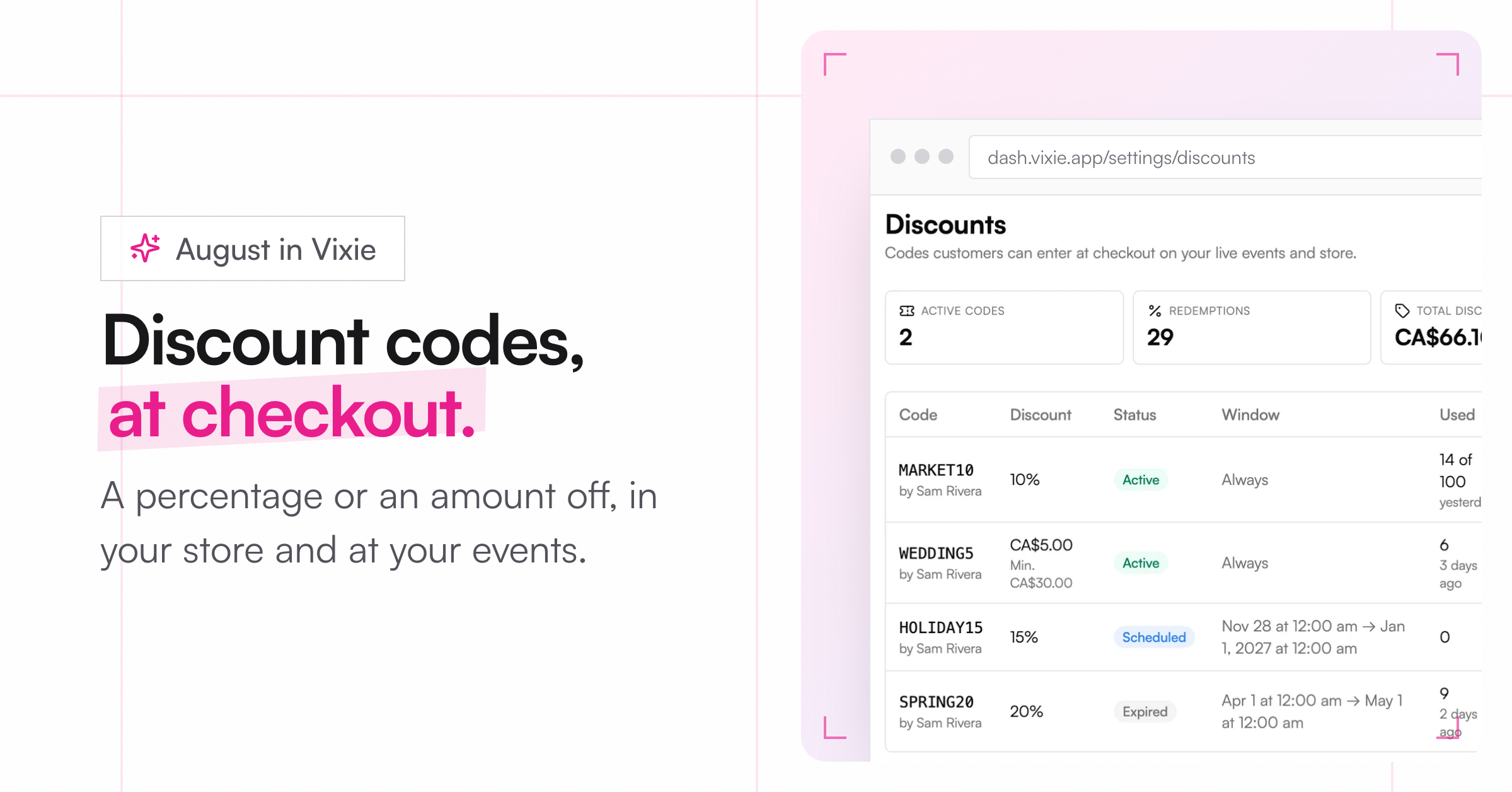
August was a big one. Here's what's new.
Discount codes
You asked, so here they are. Go to Settings, then Discounts, and click New code. Choose a percentage or an amount off. You can add a minimum order, a usage limit, and start and end dates. Customers enter the code at checkout in your Vixie store and at live events. Shopify stores keep using Shopify's own discount codes.
More ways to make a magnet personal
-
Remove background: Your customer can cut themselves out of a photo in the Magnet Customizer. It works on iPhone photos too.
-
Sticker outline: Add a thin, medium, or thick outline around the cut-out, in any colour.
-
Background colours: Pick from a palette or choose your own colour, next to your own background images.
-
Bulk orders: One photo, printed many times. Turn on Bulk order when uploading, and one crop fills the whole pack.
Live events
-
Magnets per guest: Hosting a wedding or a party? Set how many magnets each guest gets. Guests see how many they have left, even if they switch phones. You can also let guests buy extras once they've used theirs.
-
Card-only events: A new Online payment mode, for events where you don't take cash.
Printing
-
Borderless magnets: Print to the edge of the photo, with no border or text. They pack tighter, so a 2.5" square fits 12 to a Letter page instead of 6.
-
Order numbers on the page: Each magnet's order number prints next to it, so mixed pages are easy to sort.
Your store in more languages
The Magnet Customizer, your Vixie store, and your live event pages now come in Spanish, French, Canadian French, German, Italian, Dutch, Brazilian Portuguese, Swedish, Danish, Norwegian, Finnish, and Polish. On Shopify it follows your store's language on its own. For your Vixie store and events, turn languages on in Settings, under Languages. The text you write yourself stays as you wrote it.
Smaller things
-
Customers can tick a box to let you use their photo on social media, and another for your news and offers. You'll see their answer on the order.
-
Carts show tax before checkout.
-
If a customer's page reloads mid-edit at an event, their photo and crop come back.
-
Galleries can be set to Required on a product.
July: bigger event orders, annual plans, and an event page that does more
Here's what we shipped in July.
Live events
-
More than one product per order: Customers can now add several products to one order at your event and pay once. Each line can have its own number of copies.
-
Edit an event after you create it: Change the name, location, payment mode, products, or date. Closed events stay locked.
-
A new event page: Start, End, and View Report sit in one bar at the top. You'll also see a status badge, a running timer, and a bigger QR section to download or print.
-
Your logo on your QR codes: Event QR codes now carry your logo in the middle. No logo? You get a plain QR.
Selling
-
Annual plans, 2 months free: Pay yearly and save 17%. Switch to Annual in Settings, under Billing.
-
Shopify stores can take payments at events: If you sell on Shopify, you can now connect Square, Stripe, SumUp, or PayPal for your live events.
-
Clearer receipts: Checkout now lists each product on its own line, with tax and shipping shown separately.
-
A home for your Vixie store: Your store now has its own page in the menu. Set how you fulfill orders there: pickup, shipping, or both. Closed your store by mistake? You can restore it within 30 days.
Smaller things
-
Orders and each channel tab now show how many orders need you.
-
An inch/mm switch in Print Studio and Edit Measurements.
-
The Shopify widget now reads more ways of writing a size, like
2" x 2"or2×2. -
The crop your customer sees now matches what prints, even with custom measurements.
Vixie is live on the Shopify App Store
Vixie is now on the Shopify App Store. Your customers personalize photo magnets right on your product page, and the orders land in Vixie ready to print.
-
On your product page: The Magnet Customizer opens on the product. The customer uploads a photo, crops it, and adds it to the cart.
-
Checkout stays in Shopify: Customers pay through your usual Shopify checkout.
-
Orders land in Vixie: Paid orders show up in your print queue, ready to print.
-
Products stay in sync: Your products and stock stay in sync between Vixie and Shopify.
Find Vixie on the Shopify App Store: https://apps.shopify.com/vixie-photo-magnets-buttons
Accept Venmo at checkout
Your customers can now pay with Venmo.
Venmo runs on top of PayPal, so setup is quick. Connect PayPal in Settings, under Payments. Then, in your PayPal account, turn on “Save PayPal and Venmo payment methods”. Venmo then shows up at checkout on its own.
Venmo appears for customers in the US paying in USD. That is a Venmo limit.
New to this? Open Settings and look for the Watch now videos on the PayPal card. They walk you through each step.